As part of our white-glove service offering, WebOps Hosting manages all aspects of your Plesk user accounts and access control. While you have the ability to manage users directly through Plesk, our team is available to handle all user management tasks on your behalf - simply email support or open a ticket with your requirements.
User Account Management Services
Our team can assist with:
- Creating new user accounts
- Modifying existing user permissions
- Setting up role-based access control
- Disabling or removing user accounts
- Troubleshooting access issues
Creating Additional User Accounts
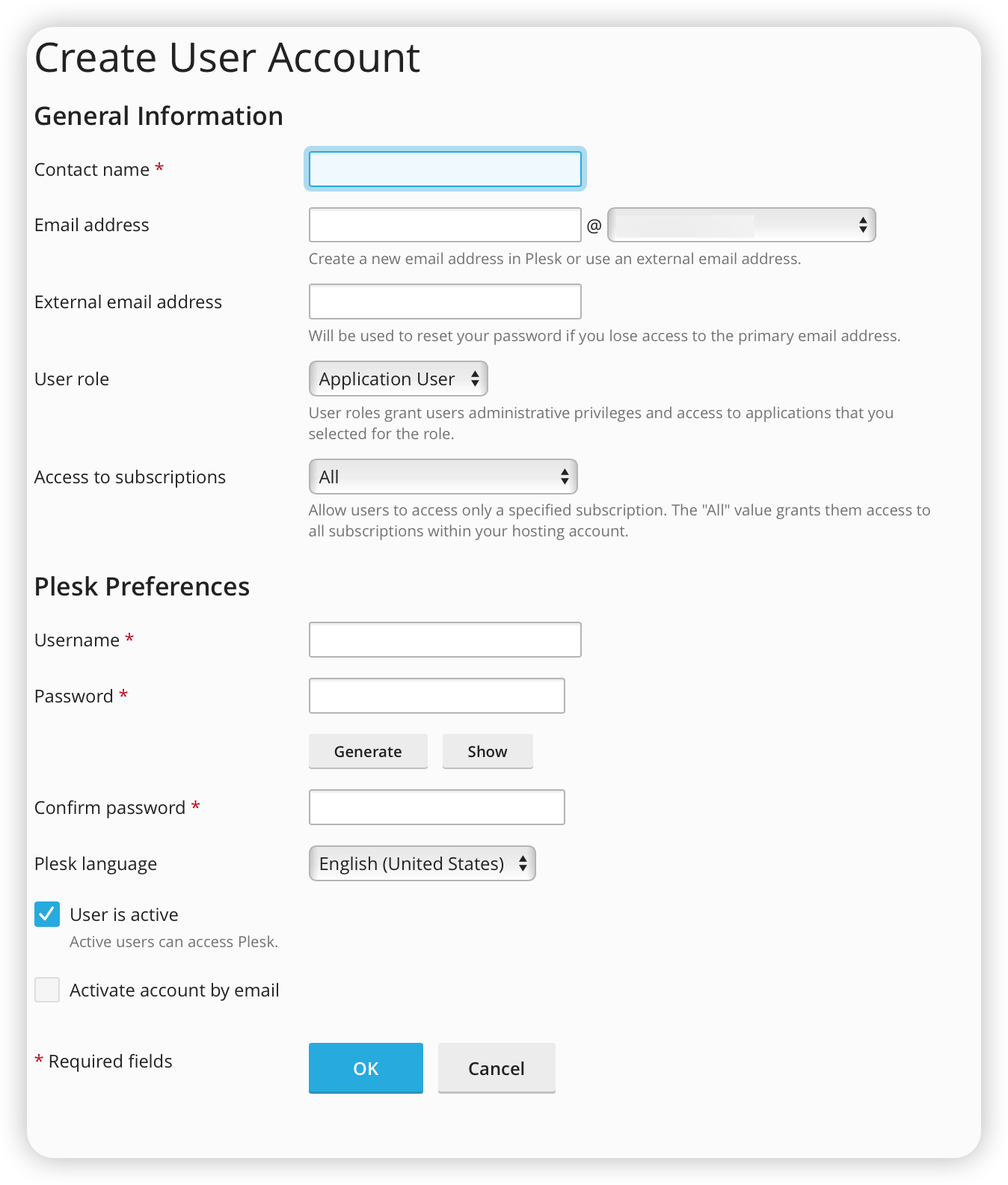
To create a new user account:
- Navigate to Users > User Accounts
- Click Create User Account
- Fill in the required information:
- Contact name
- Email address
- Username
- Password
- User role (determines permissions)
- Subscription access settings
User Roles and Permissions
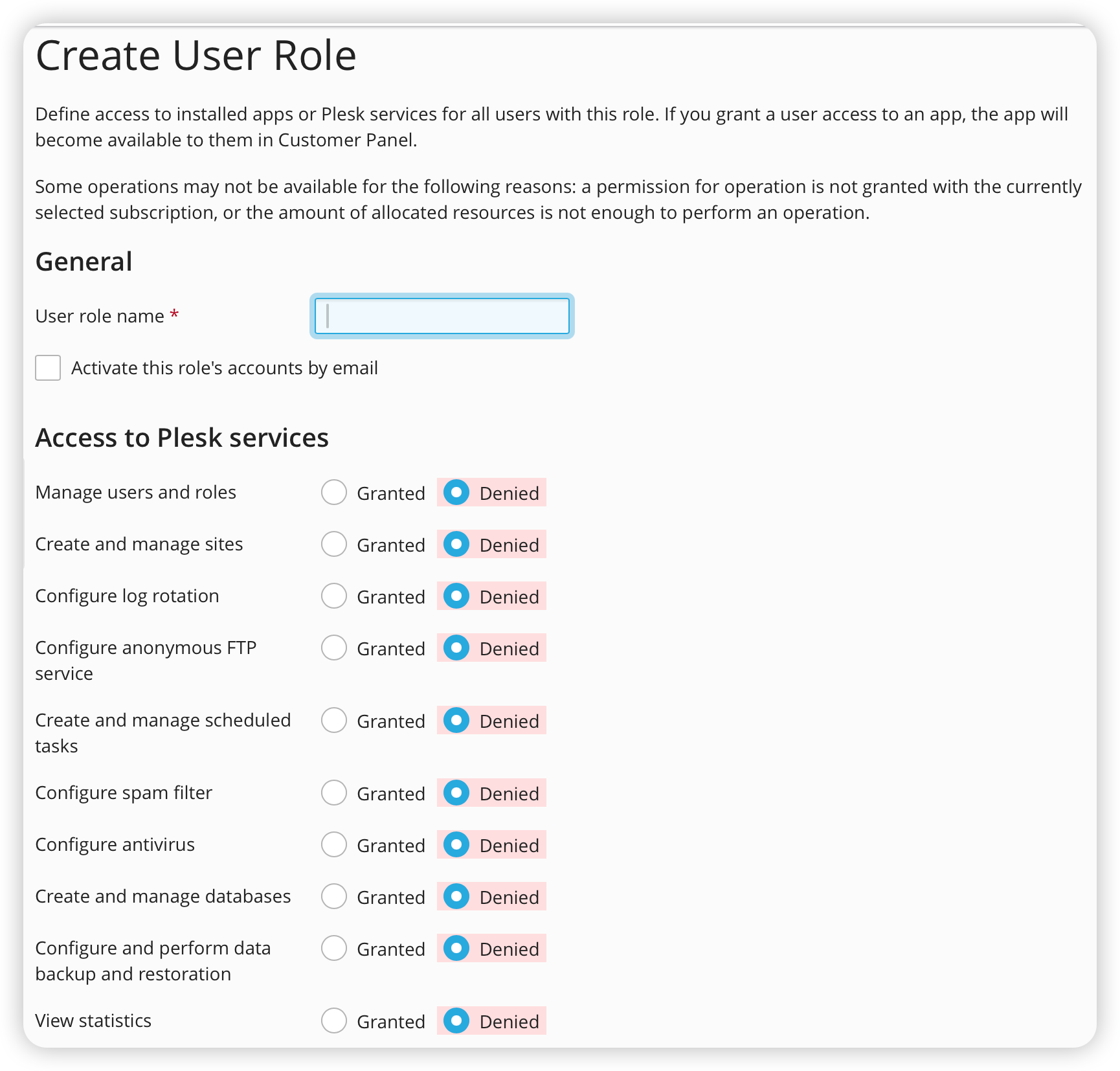
Each additional user must be assigned a role that defines their permissions. To create a new role:
- Go to Users > User Roles
- Click Create User Role
- Configure permissions as needed
Available Permissions
- User Management
- Manage users and roles
- Create and manage sites
- Upload and manage files
- Mail Management
- Create and manage mail accounts
- Configure spam filter
- Configure antivirus
- Create and manage mailing lists
- Technical Management
- Create and manage databases
- Manage DNS settings
- Configure log rotation
- Create and manage additional FTP accounts
- Website Tools
- Install and manage applications
- Design sites in Presence Builder
- View statistics
- Backup Operations
- Configure and perform data backup and restoration
Managing User Access
Subscription Access
When creating or editing a user account, you can control whether they have access to:
- All subscriptions under your account
- A specific subscription only
Activating/Deactivating Users
To temporarily disable user access without deleting the account:
- Go to Users > User Accounts
- Select the user account
- Click Change Settings
- Clear the User is active checkbox
Requesting User Account Changes
To request any changes to user accounts, simply:
- Email our support team at support@webops.host
- Open a ticket through your client portal
- Contact your account manager
Please include the following information in your request:
- User's full name
- Email address
- Required access level/role
- Which subscription(s) they need access to
- Any specific permissions they require
Security Best Practices
Our team implements these security best practices for all user accounts:
- Strong password requirements
- Regular access reviews
- Prompt deactivation of unused accounts
- Principle of least privilege access
- Activity logging and monitoring
Note: While Plesk provides direct user management capabilities through its interface, we recommend allowing our team to handle these tasks to ensure proper setup and security.