
Your Website Is Being Watched. By Us, Not Just By Threats.
WordPress vulnerabilities increased 34% last year, and the average hacked site goes undetected for weeks. That is not your problem to worry about, because we are already watching.
Every WebOps hosting account includes round-the-clock security monitoring as part of your hosting. No extra plugins to install, no dashboards to check, no alerts to decipher. We monitor your site at multiple layers so threats are caught early, before they become emergencies.
This article explains how we watch your site. For details on the defensive tools that block attacks in the first place, see our Multi-Layer Security System overview.
Five Layers of Monitoring, Working Together
No single tool catches everything. That is why we use five specialized monitoring tools, each watching a different part of your site:
| Layer | Tool | What It Watches |
|---|---|---|
| Server-level scanning | Imunify360 | Malware in files, suspicious scripts, server-side threats |
| Application firewall | NinjaFirewall | Malicious requests targeting WordPress specifically |
| User activity tracking | Simple History | Every action inside your WordPress dashboard |
| External reputation | Sucuri SiteCheck + Imunify360 | Domain blocklist status (Sucuri) and server IP reputation (Imunify360) |
| Uptime and performance | NodePing + New Relic | Is your site up? Is it running well? |
Malware and File Scanning
Imunify360 runs directly on the server and scans your website files for known malware signatures, suspicious code patterns, and unauthorized changes. Unlike a WordPress plugin that can only see what WordPress sees, Imunify360 operates at the server level. It can detect threats even if WordPress itself has been compromised.
Scans run automatically and regularly. When something suspicious is found, it is flagged and our team investigates. Confirmed threats are cleaned, and you are notified of what happened and what we did about it.
Real-Time Request Monitoring
NinjaFirewall sits inside WordPress but loads before any other plugin or theme code runs. It monitors every incoming request to your site (form submissions, login attempts, API calls, file uploads) and blocks anything that matches known attack patterns.
This is particularly valuable because it catches WordPress-specific attacks that a general server firewall might miss, like SQL injection attempts disguised as search queries or cross-site scripting hidden in comment fields. You can learn more in our WAF Protection article.
Most of what NinjaFirewall blocks is automated, low-effort attack traffic. The log makes that obvious at a glance:
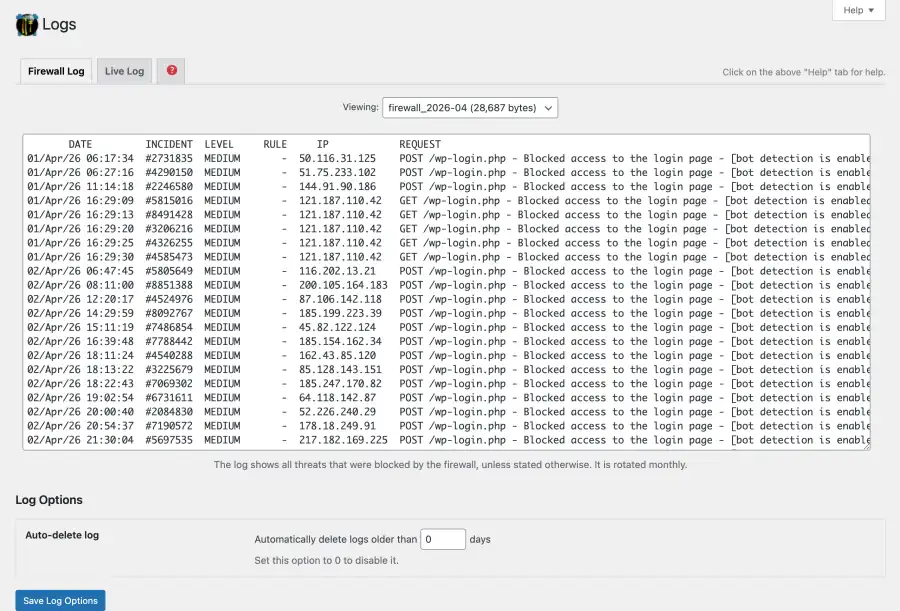
A typical day on a WebOps-hosted site. Every row is a blocked request to wp-login.php from a different attacker IP, caught by NinjaFirewall’s bot detection before it ever reached WordPress. None of these triggered an alert to you, because none of them got through.
Activity Logging: Who Did What, and When
Simple History records every meaningful action taken inside your WordPress dashboard: logins, content edits, plugin changes, user creation, settings modifications. Think of it as security cameras for your website’s admin area.
This matters for two reasons. First, if something breaks or looks wrong, we can trace exactly what changed and when. Second, if an unauthorized user gains access, the activity log shows us exactly what they touched so we know what needs to be fixed.
You have access to view your own activity log anytime. The most recent events show up right on your WordPress dashboard:
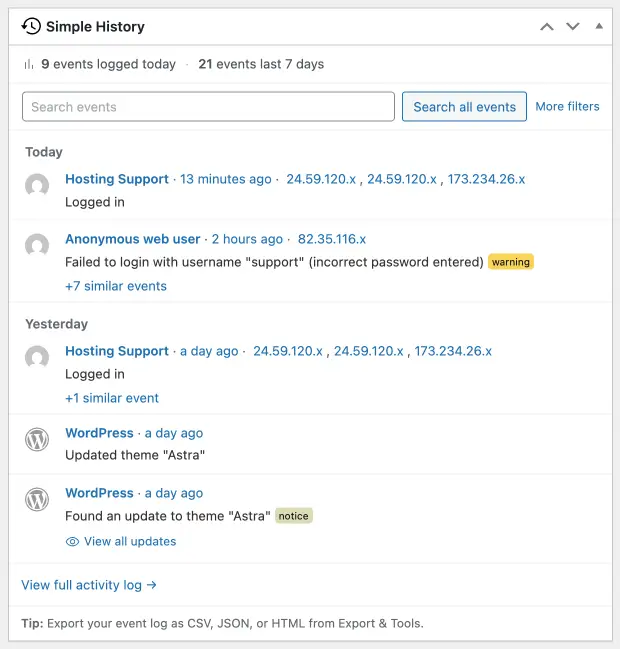
The Simple History widget on your WordPress dashboard surfaces recent activity at a glance, including logins, failed login attempts, and plugin or theme updates. For the full log, filters, and export, see our Activity Logging guide.
We also extend Simple History with a custom WebOps logger that captures Gravity Forms activity (submissions, entry edits, form management) right alongside the rest of your site’s events. Most hosts do not log form events at all. Details in the activity logging guide.
External Reputation Monitoring
“Reputation” online means two different things, and we monitor both.
Sucuri SiteCheck watches your domain reputation from the outside, the same way Google, browsers, and your visitors see it. It checks whether your site has been flagged on any major blocklists (Google Safe Browsing, Norton, McAfee, PhishTank, and others). A blocklist flag can devastate your business overnight. Browsers show scary warnings, Google drops your search rankings, and visitors stop coming. External monitoring catches these issues quickly so we can resolve them before the damage compounds.
Imunify360 also tracks server IP reputation. It checks whether the server’s outbound IP address has landed on any threat-intel feeds or mail blocklists (RBLs), and it uses inbound IP reputation feeds to filter requests before they reach your site. Domain reputation (what visitors see) and IP reputation (what mail servers and fraud filters see) are different problems with different fixes, and we cover both.
Uptime and Server Health
NodePing checks your site every 60 seconds from monitoring stations around the world. If your site goes down, we know within a minute, often before you or your visitors notice.
New Relic monitors the server itself: CPU usage, memory, disk space, and application performance. This helps us spot problems that have not caused downtime yet but could if left unchecked, like a database growing faster than expected or a plugin consuming excessive resources.
What Happens When We Find Something
Monitoring is only useful if someone acts on it. Here is what happens when our tools flag an issue:
- Automated blocking. Known threats (malicious requests, malware signatures) are blocked or quarantined immediately by Imunify360 and NinjaFirewall.
- Team review. Unusual activity and flagged items are reviewed by our team during business hours (9am-5pm, 7 days a week).
- Investigation. For anything serious, we dig into logs across all five monitoring layers to understand the full picture.
- Resolution and communication. We fix the issue and let you know what happened, what we did, and whether you need to take any action (like changing a password).
For genuine emergencies (site hacked, data breach, or total downtime) we respond 24/7. See What Qualifies as an Emergency for details on our emergency response.
Frequently Asked Questions
Do I need to install any security plugins myself?
No. NinjaFirewall and Simple History are pre-installed on every WebOps site. Imunify360, Sucuri SiteCheck, NodePing, and New Relic run at the server level and do not require anything in WordPress. Your security monitoring is fully managed from day one.
How is this different from your Multi-Layer Security System?
Our Multi-Layer Security System article explains the protective tools that block attacks. This article covers the monitoring tools that detect threats and track activity. Many of the same tools do both: Imunify360 blocks and scans, NinjaFirewall blocks and logs. The focus here is on the watching and alerting side.
Will I get notified if something is wrong?
For anything that requires your attention (a confirmed malware incident, a blacklist flag, or extended downtime) yes, we will contact you directly. For routine blocked attacks, which happen constantly on every WordPress site, we handle those silently so you are not buried in alerts.
Can I see the monitoring data myself?
You can view your activity log directly in your WordPress dashboard via the Simple History widget or under Tools → Simple History. For data from other monitoring tools (Imunify360 scan results, uptime history, firewall statistics), just ask. We are happy to pull reports or walk you through what we are seeing.
Is my site really being attacked that often?
Almost certainly. Automated bots probe every publicly accessible WordPress site constantly, looking for known vulnerabilities. It is not personal, it is automated. That is exactly why automated monitoring and blocking is essential, and why it is included with your hosting rather than being something you have to set up yourself.
Questions? Contact us at support [at] webops [dot] host or submit a support ticket. Our team is available 9am-5pm, 7 days a week (24/7 for emergencies).