Two-factor authentication (2FA) is now required on every Plesk account we host. It's the same protection your bank uses: a password by itself is no longer enough, you also need a short, time-based code from an authenticator app. This article explains what to expect, how to set it up (from both a phone and a browser extension), and what to do if you ever lose access to your code.
Why It's On
Stolen and reused passwords are the most common way attackers reach control panels. Two-factor authentication makes a password alone useless: even if it leaks, an attacker still can't sign in without the second code. We enabled it across the entire fleet as part of our standard security baseline, the same posture we apply at the server, WordPress, and email layers.
What You Need: An Authenticator App
Plesk uses a method called TOTP (time-based one-time password). The codes are generated by an authenticator app on your phone or in your password manager. Codes are not sent by email or text message. This is the most common point of confusion. If you're waiting on a code to arrive in your inbox, none is coming. You read it directly from the app.
Any of the following work. If you already use a password manager day-to-day, picking the one that integrates with it is usually the easiest path, because the authenticator code sits right next to the password on the same login entry.
- Bitwarden: has a built-in authenticator. If your team already uses Bitwarden as its password manager, this is the natural choice. The Plesk verification code appears at the bottom of the Plesk login item and refreshes every 30 seconds. (This is what we use ourselves.)
- 1Password: same integrated pattern as Bitwarden. The code lives on the Plesk login entry.
- Google Authenticator (iOS, Android): simplest standalone option, free.
- Microsoft Authenticator (iOS, Android): free.
- Authy (iOS, Android, desktop): free, syncs across devices so a lost phone doesn't lock you out.
First-Time Setup
The first time you sign in to Plesk after 2FA is enabled, Plesk shows you a one-time setup screen with a QR code and a "Verification code" field. It looks like this:
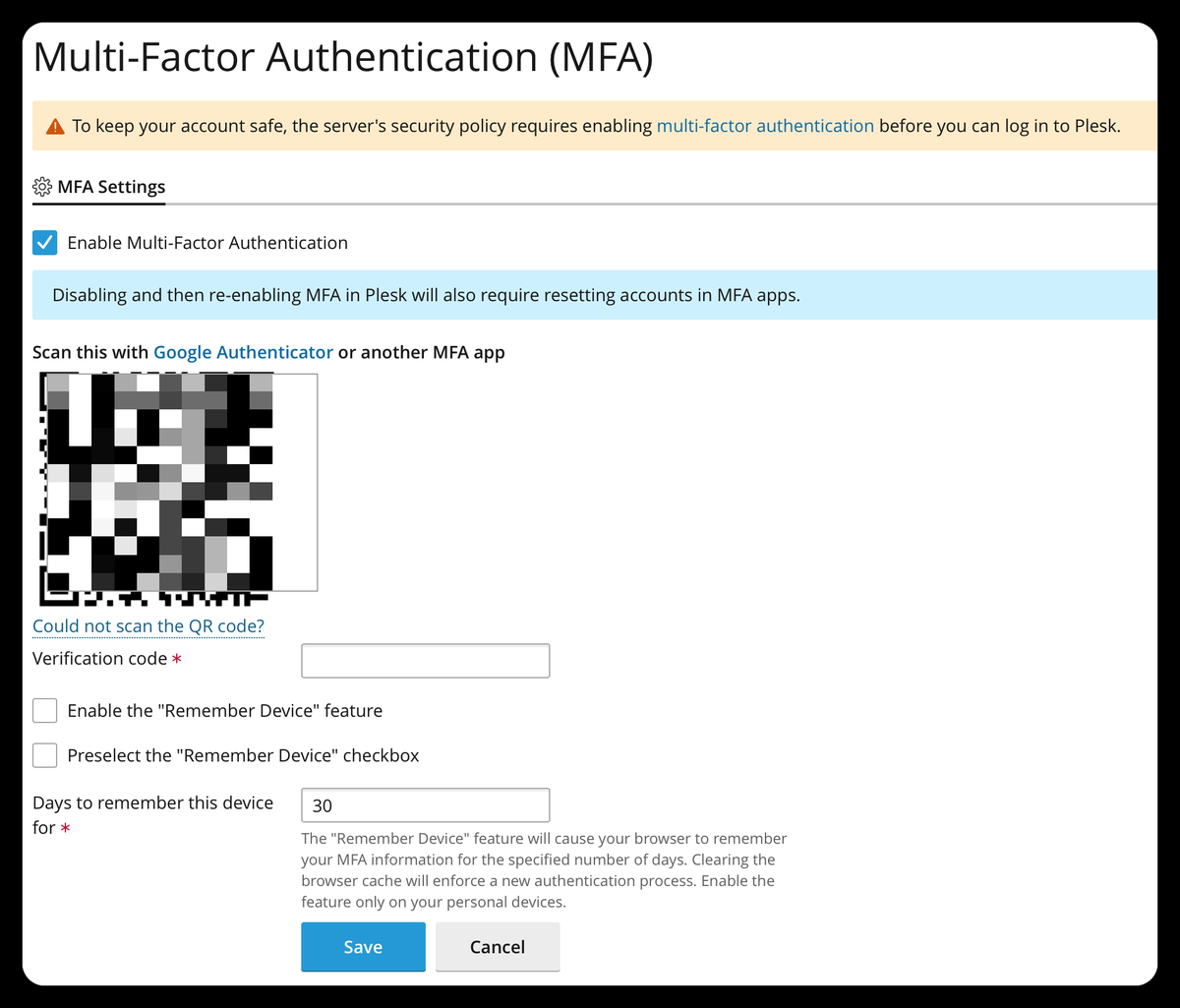
How you get the secret into your app depends on whether you're using a phone or a browser extension.
Option A: Setup From Your Phone
- Enter your Plesk username and password as usual.
- Plesk displays a QR code on screen.
- Open your authenticator app (Bitwarden, Google Authenticator, etc.) on your phone and tap the option to add a new entry. In Bitwarden, edit your Plesk login entry and tap the camera icon next to "Authenticator key (TOTP)". In standalone apps, tap the "+" button and choose "Scan a QR code".
- Point your phone's camera at the QR code on your computer screen. The app captures it instantly.
- The app now shows a six-digit code that refreshes every 30 seconds. Type the current code into Plesk's Verification code field to confirm setup is working.
If you use Bitwarden or another syncing password manager, the entry will appear in your browser extension automatically once your vault syncs.
Option B: Setup From a Browser Extension (No Phone)
The Bitwarden or 1Password browser extension can't scan a QR code on the same screen it's running on. Plesk provides a text alternative for exactly this situation:
- Enter your Plesk username and password as usual.
- On the MFA setup screen, click the "Could not scan the QR code?" link directly below the QR image.
- Plesk reveals the secret as text. Copy it.
- Open your password manager, edit your Plesk login entry, and paste the secret into the Authenticator key (TOTP) field. Save.
- The entry now shows a rotating six-digit code. Type the current code into Plesk's Verification code field to confirm setup is working.
Day-to-Day Logins
After setup, every login looks like this:
- Enter your Plesk username and password.
- Plesk asks for a verification code.
- Open your authenticator (phone app or browser extension), find the Plesk entry, and type the six-digit code shown next to it.
The code rotates every 30 seconds, so type it promptly. If it refreshes while you're typing, just use the new one.
"Remember This Device"
Plesk offers a checkbox to trust your current browser for a set number of days (30 by default). If you tick it, you won't be asked for a code again on that browser until the trust period expires.
The trust is tied to a browser cookie, so it ends sooner than expected if you:
- Clear your browser cookies or use private / incognito mode
- Switch to a different browser, device, or computer
- Reinstall the browser
None of these are problems. You'll just be asked for a fresh code from your authenticator, the same as a first login on that device.
If You Can't Get a Code
Things that mean you've lost authenticator access:
- You replaced your phone and didn't restore the authenticator app
- You deleted the Plesk entry from the app by accident
- You uninstalled the authenticator app
- You never finished the initial setup
In any of these cases, just open a support ticket. We'll reset 2FA on your account, and the next time you sign in Plesk will show you a fresh QR code (or secret key) to enroll. You'll be back in within a couple of minutes.
Tips to Avoid Lockouts
- Use an app with backup. Bitwarden, 1Password, and Authy all sync your authenticator entries across devices, so a lost phone doesn't mean lost access. Google Authenticator and Microsoft Authenticator support cloud backup as an option, make sure it's turned on.
- Don't delete the Plesk entry from your app, even if you haven't logged in for a while. It stays valid as long as the account exists.
- When changing phones, set up the new phone's authenticator before retiring the old one.
Getting Help
If you're stuck at the verification step, or want us to reset 2FA so you can re-enroll, open a ticket from your client area or email support [at] webops [dot] host. Mention that it's a Plesk 2FA reset and we'll handle it the same day.